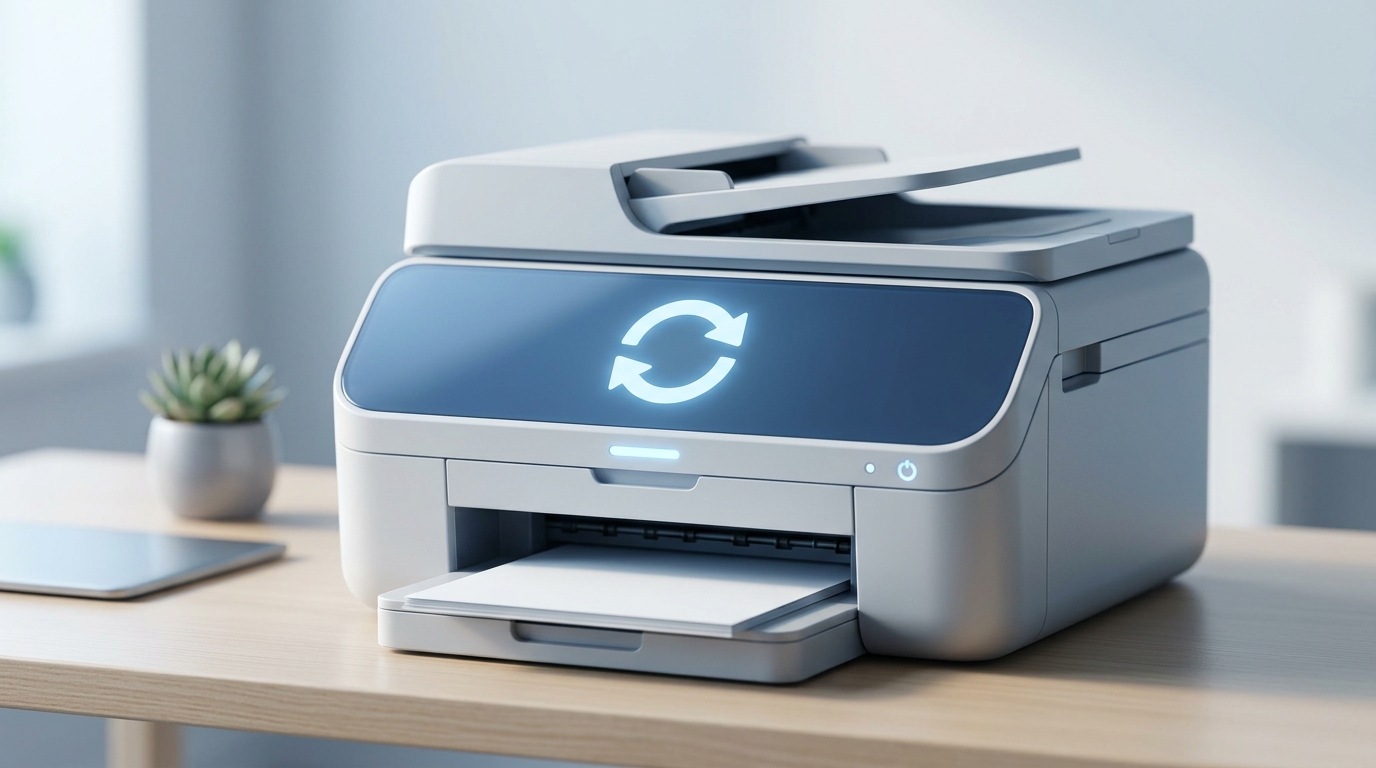
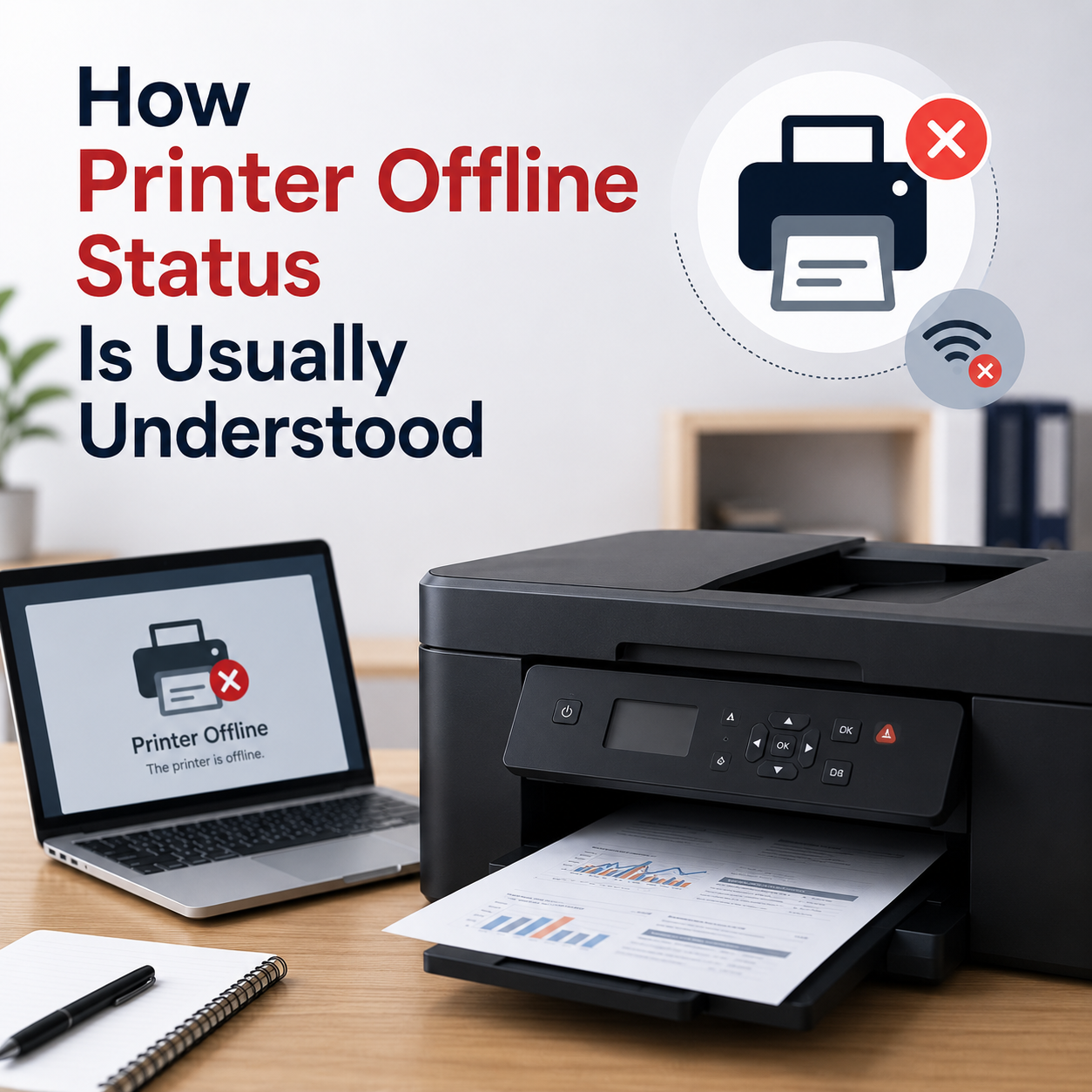
HP or Canon printer status displays as "Offline"
Your printer is powered on and connected to the cable or Wi-Fi, but the computer shows it as offline or unreachable.
Browse self-guided educational resources about printers, routers, email, computer performance and Windows updates.
Each category is designed for calm reading, simple explanations and general educational understanding.
Search by message, behaviour, category or error code. Select a result from the directory to preview its explanation before opening the related guide.
Your printer is powered on and connected to the cable or Wi-Fi, but the computer shows it as offline or unreachable.
Documents are stuck in the print queue status bar, preventing any new print jobs from processing.
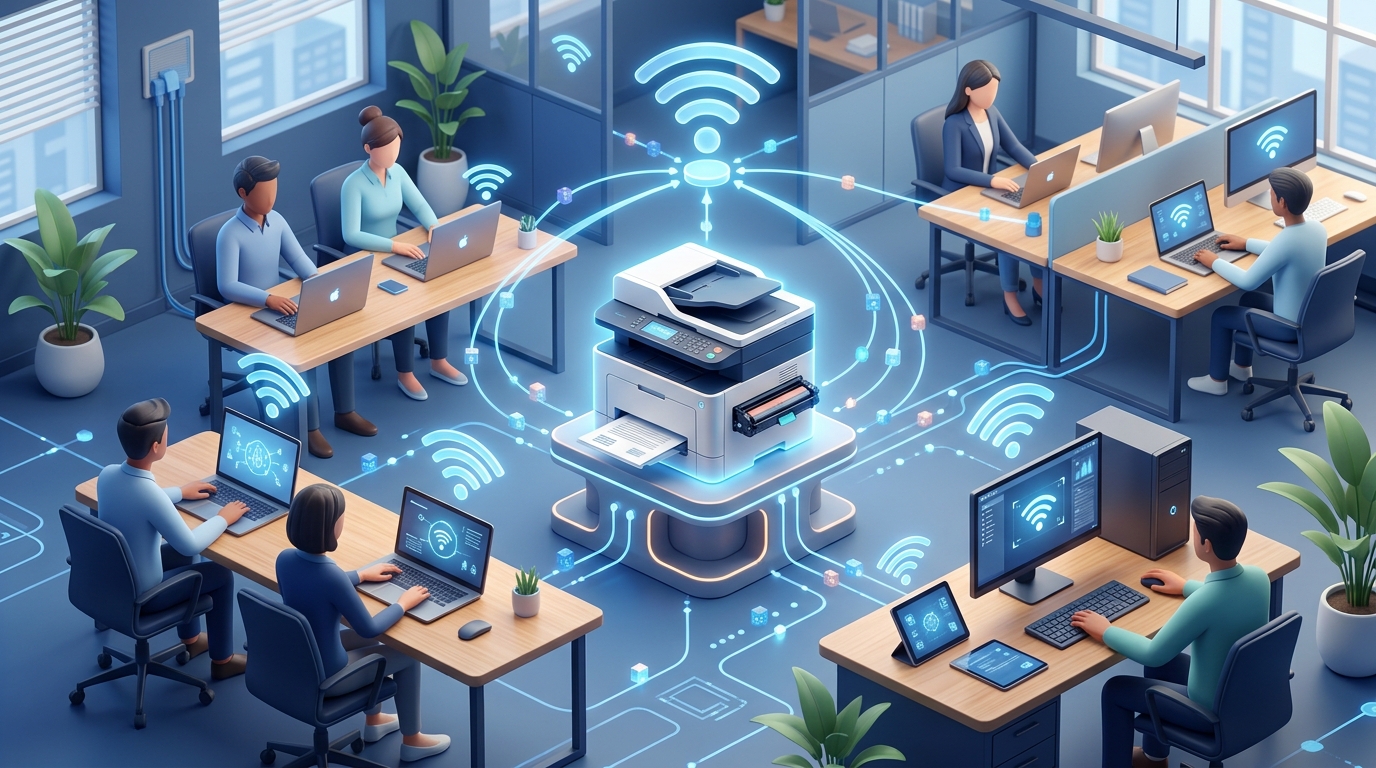
Laptop sends print commands but the printer does not respond, despite being connected to the same network.
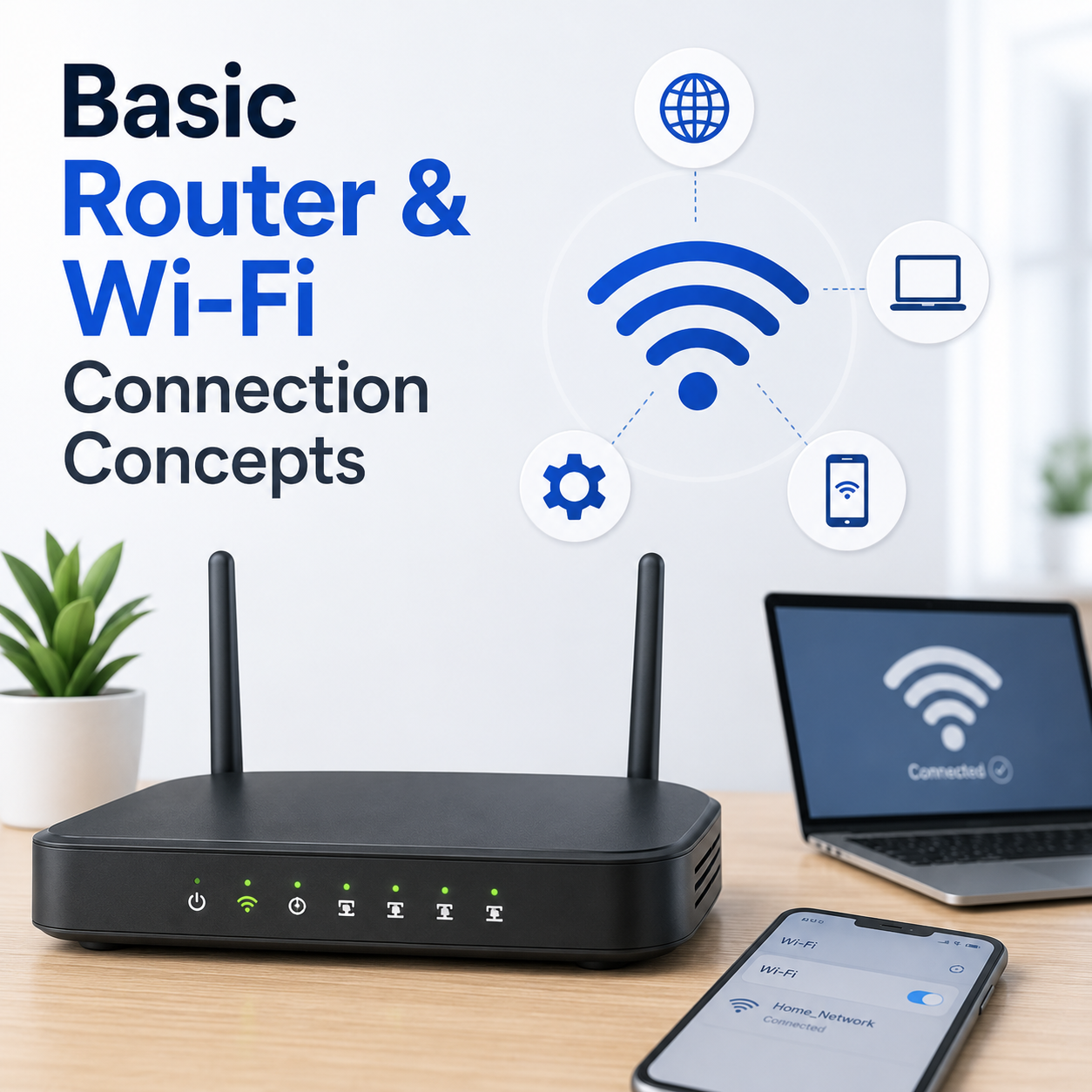
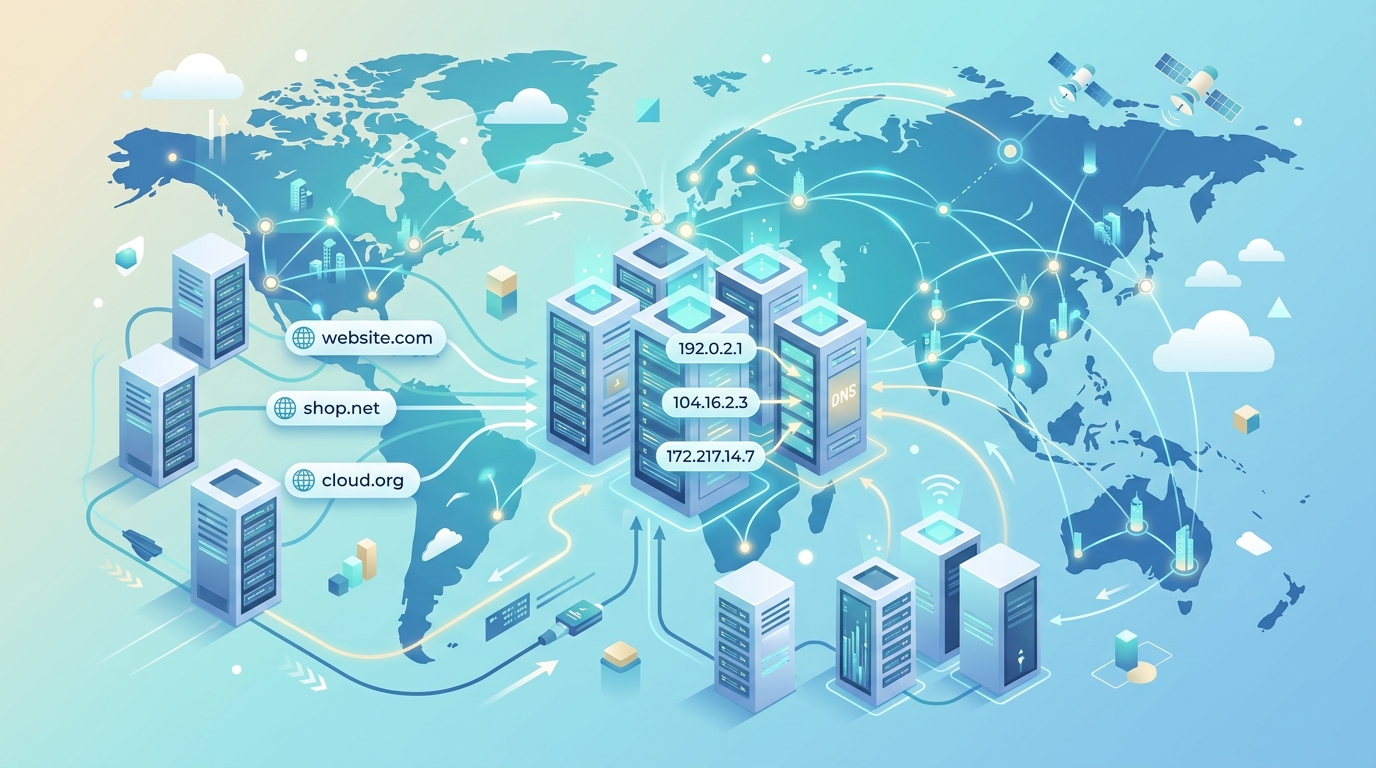
Your laptop or phone connects successfully to the Wi-Fi signal, but web pages fail to load or show DNS errors.
Unable to access the default login panel of your router in a browser to manage network settings.
Signal strength fluctuates heavily or drops entirely in specific zones of your house or office.
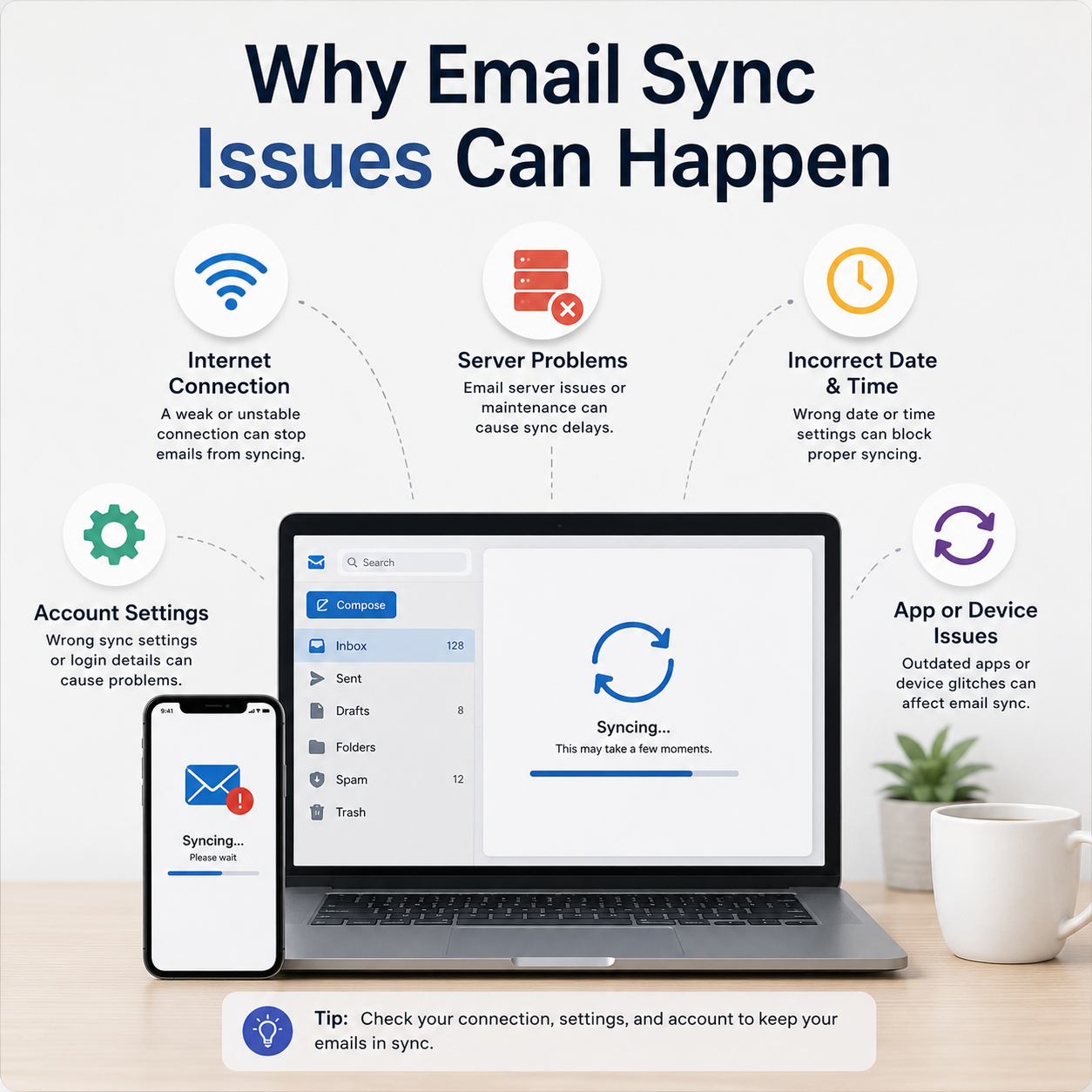
Mail folders fail to synchronize, incoming emails are delayed, or credentials prompt repeatedly.
Outgoing emails are not delivered and stay in your local outbox folder with error messages.
Email client rejects your incoming or outgoing mail server password or shows SSL/TLS security issues.
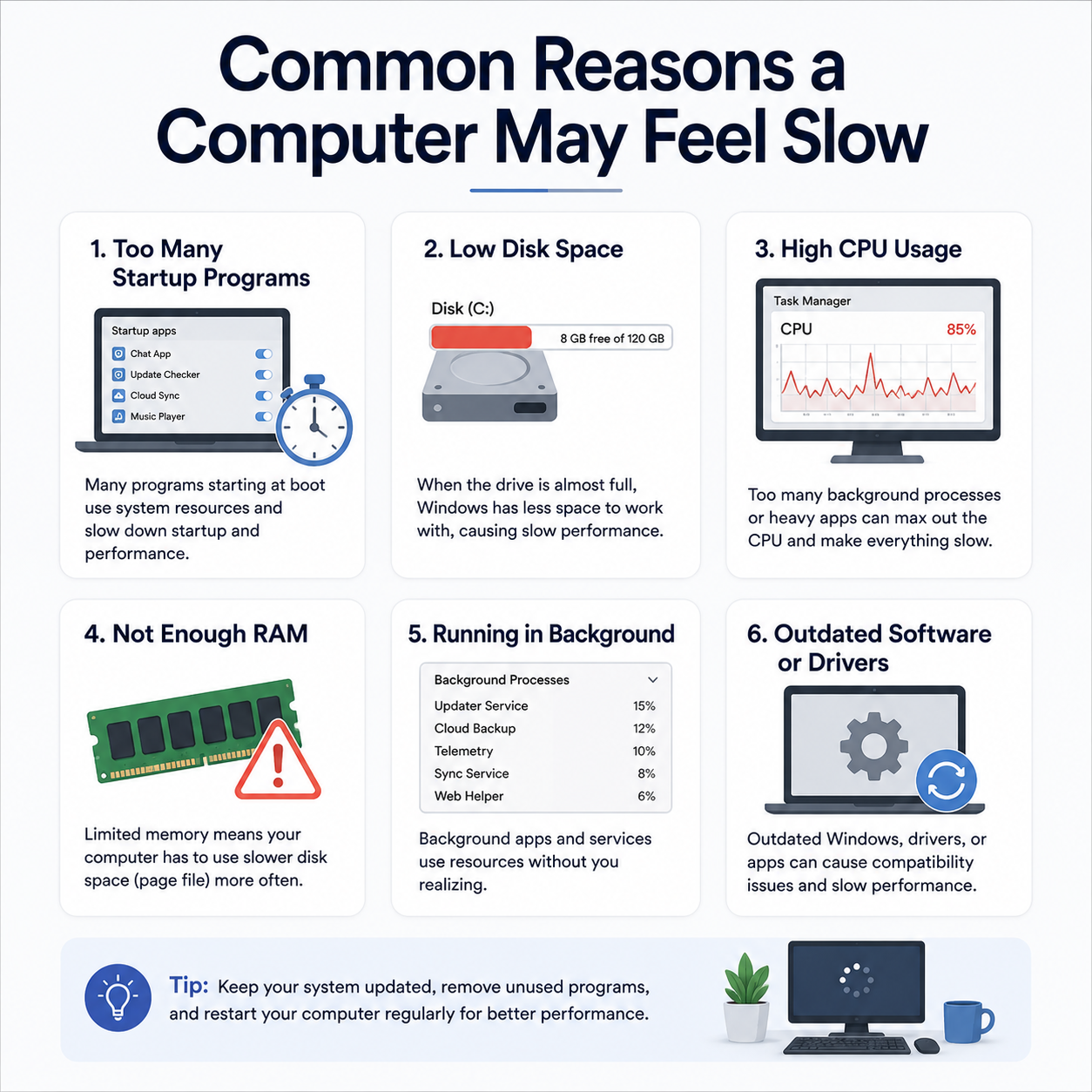
Windows loads very slowly, and the desktop icons or taskbar remain frozen for several minutes after login.
Task Manager reveals 100% CPU or active disk time, causing mouse jitters and laggy application performance.
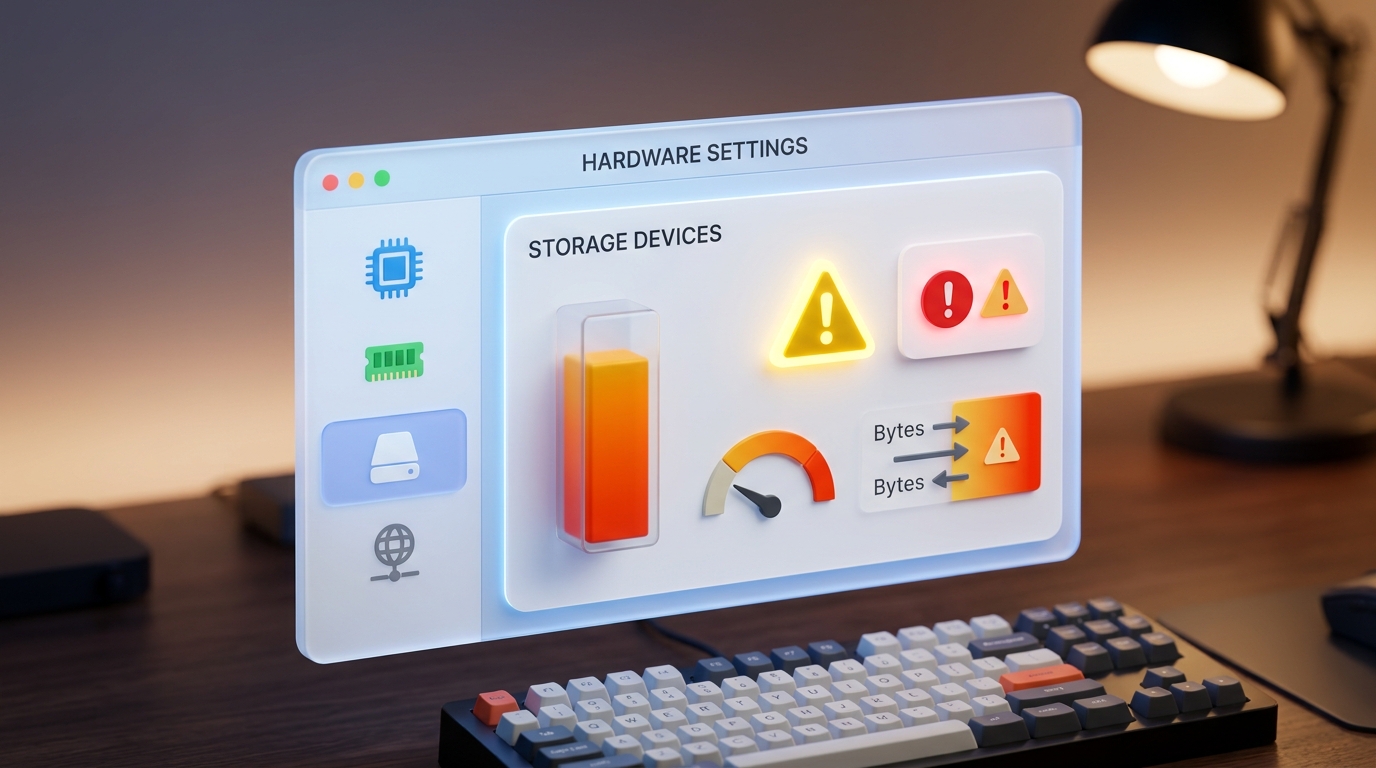
Windows warns of low disk capacity on the C: drive, which prevents temporary cache file creation.
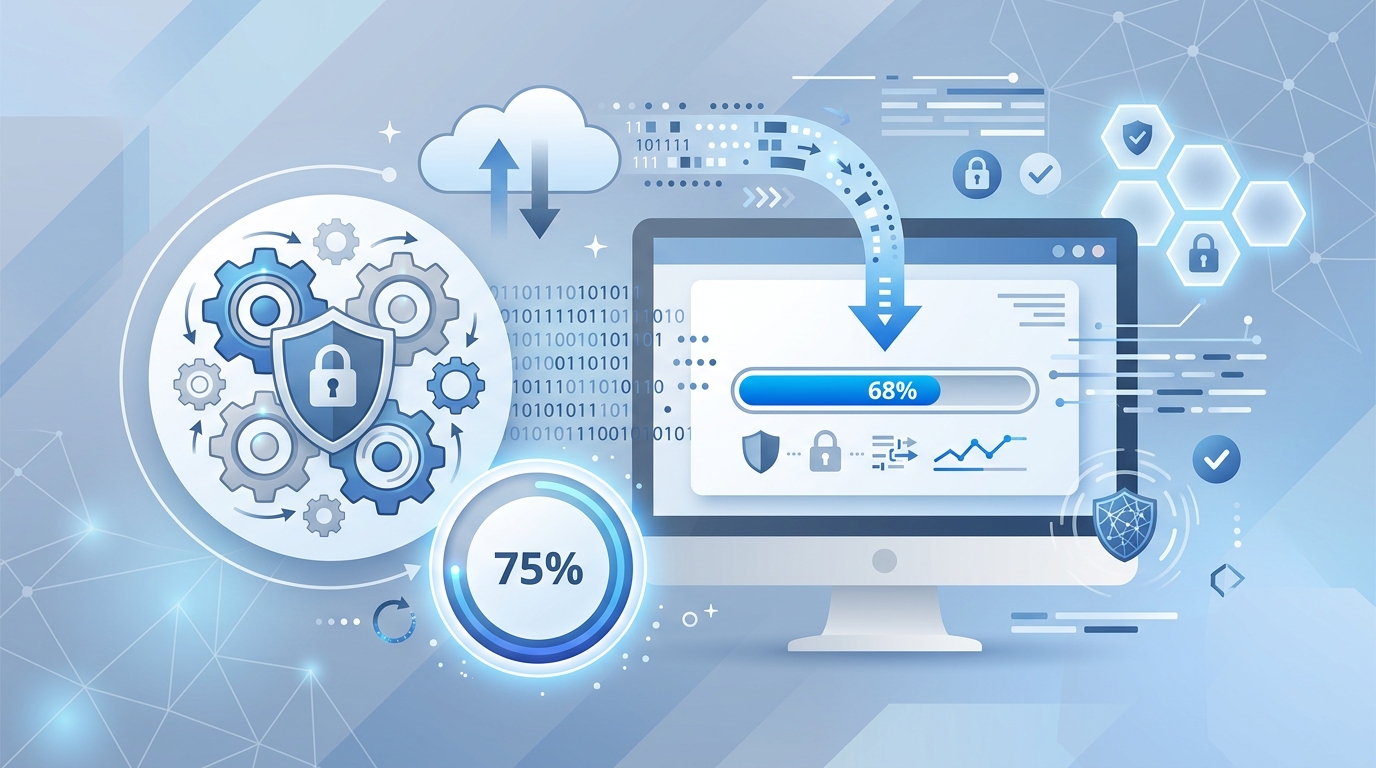
The progress screen halts for hours, or displays "Undoing changes" after restarting.
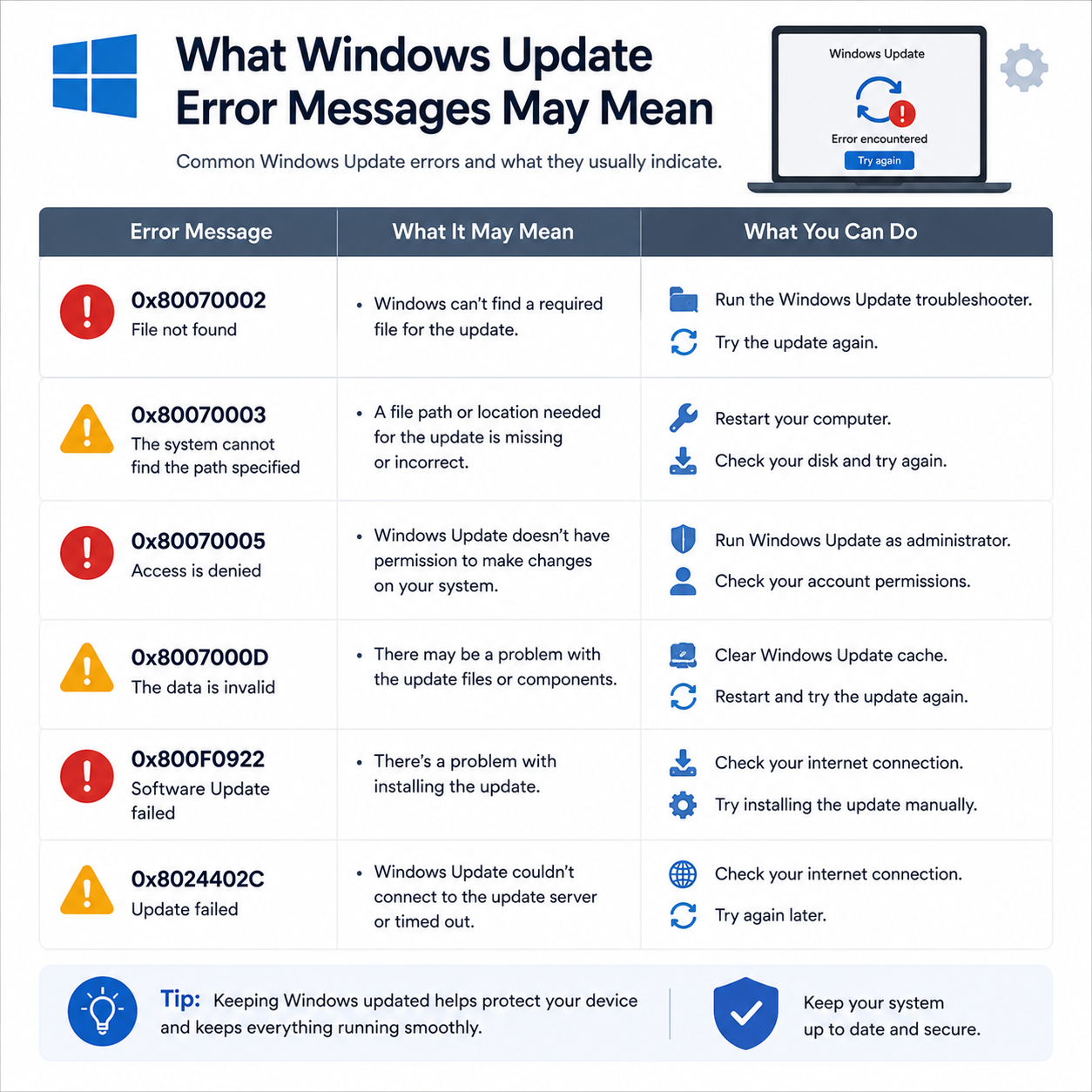
Update history shows a list of failed installations with numeric error codes instead of success.
An automatic system update updates a driver that causes system crashes, loop restarts, or hardware failures.
Try a shorter keyword or choose another category.
Use every guide in the same simple sequence.
Choose a topic, understand the concept, and compare examples.
Choose printer, router, email, PC performance, or Windows update learning.
Understand common terms, status messages, settings, and device behavior.
Match the explanation with common screens, messages, and system prompts.
The library does not provide callbacks, remote sessions or repair services.